3 Hidden iPhone Camera Features for Stunning Photos
They're hiding in your Camera app right now, and almost nobody uses them.
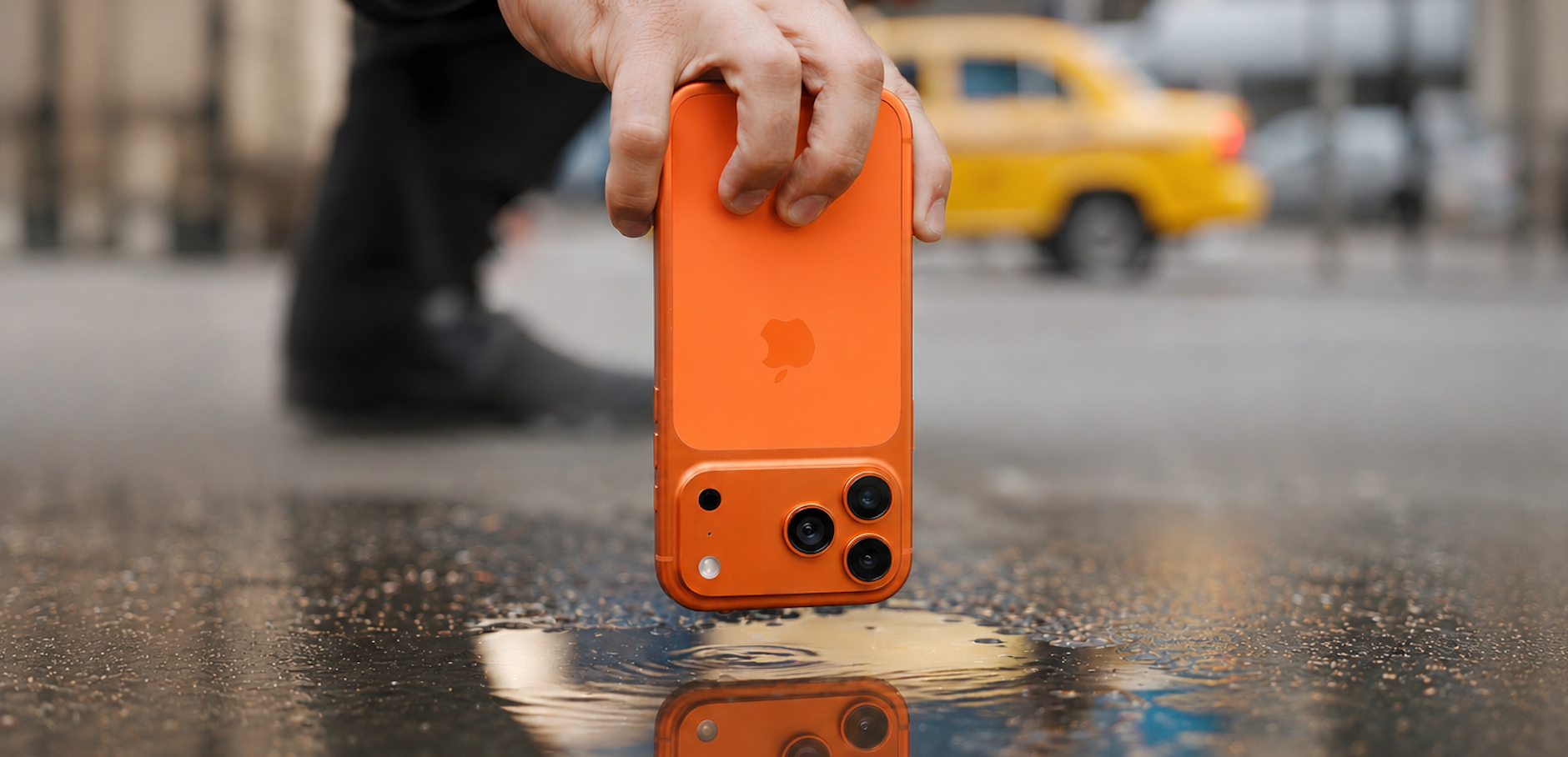
You carry a powerful camera everywhere you go. So why do most iPhone photos still look ordinary?
It’s not the camera. iPhones can take stunning photos. Most people just never get past point and shoot.
A few hidden features change that fast. They’re the little tricks the pros use every day, and hardly anyone knows them. Here are three of our favorites.
1. Precision brightness control
Ever taken a photo that came out too bright? Or too dark?
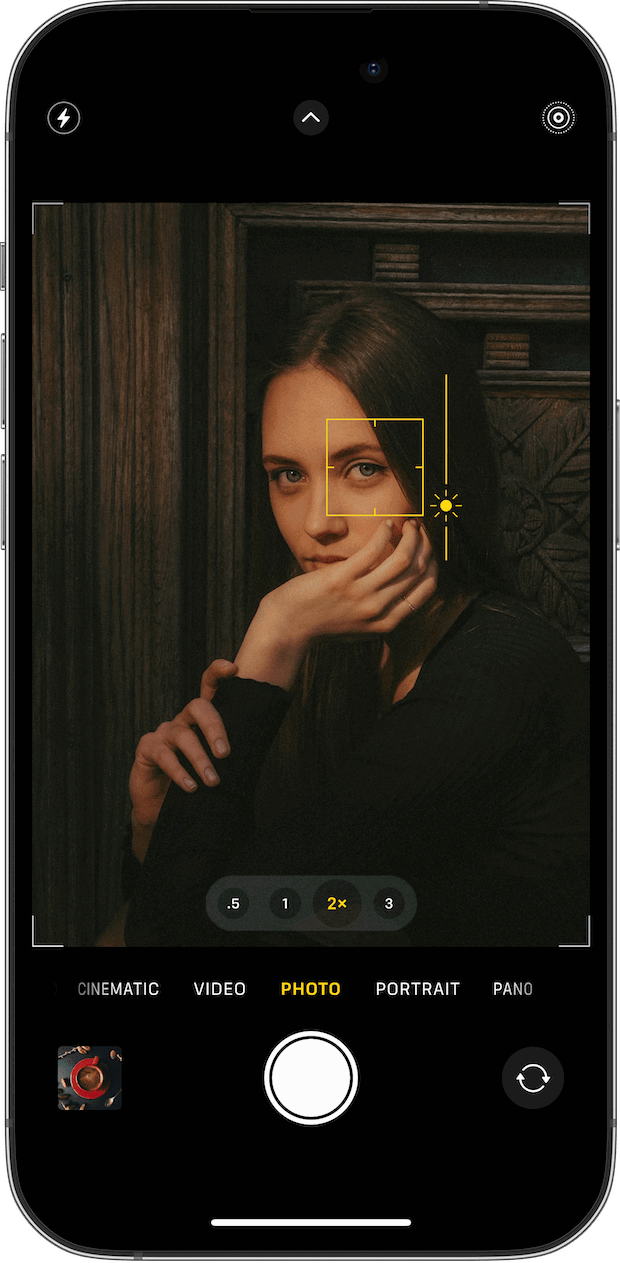
Your iPhone has a hidden fix. It’s called the exposure slider.
Tap the screen to focus. Then slide the sun icon up or down to brighten or darken your shot before you take it.
It’s the difference between a washed-out sky and a rich, dramatic one. The pros adjust it all the time.
2. Breathtaking long exposures
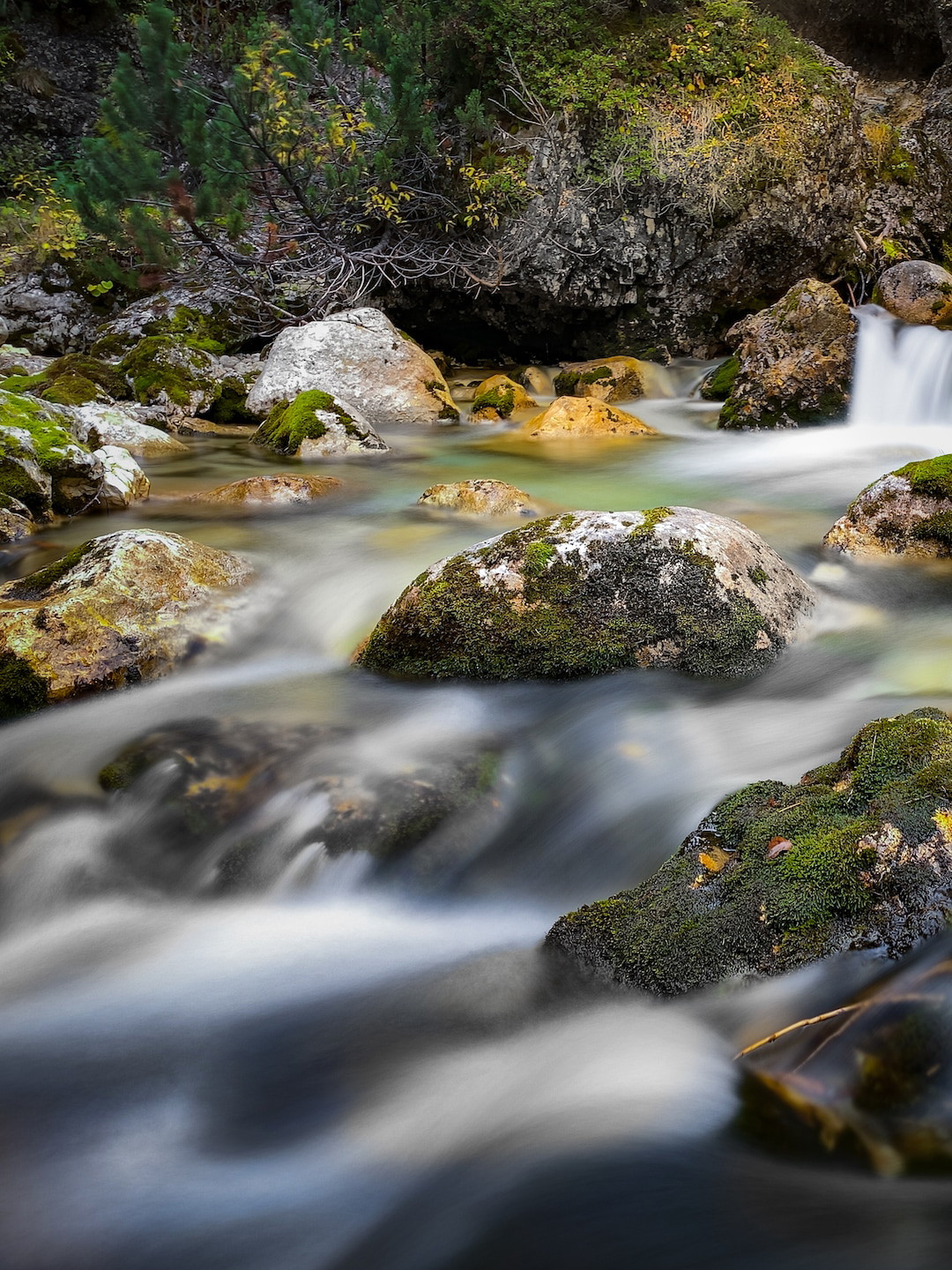
Want silky water and dreamy motion blur? Your iPhone can do that. No extra gear needed.
Here’s how:
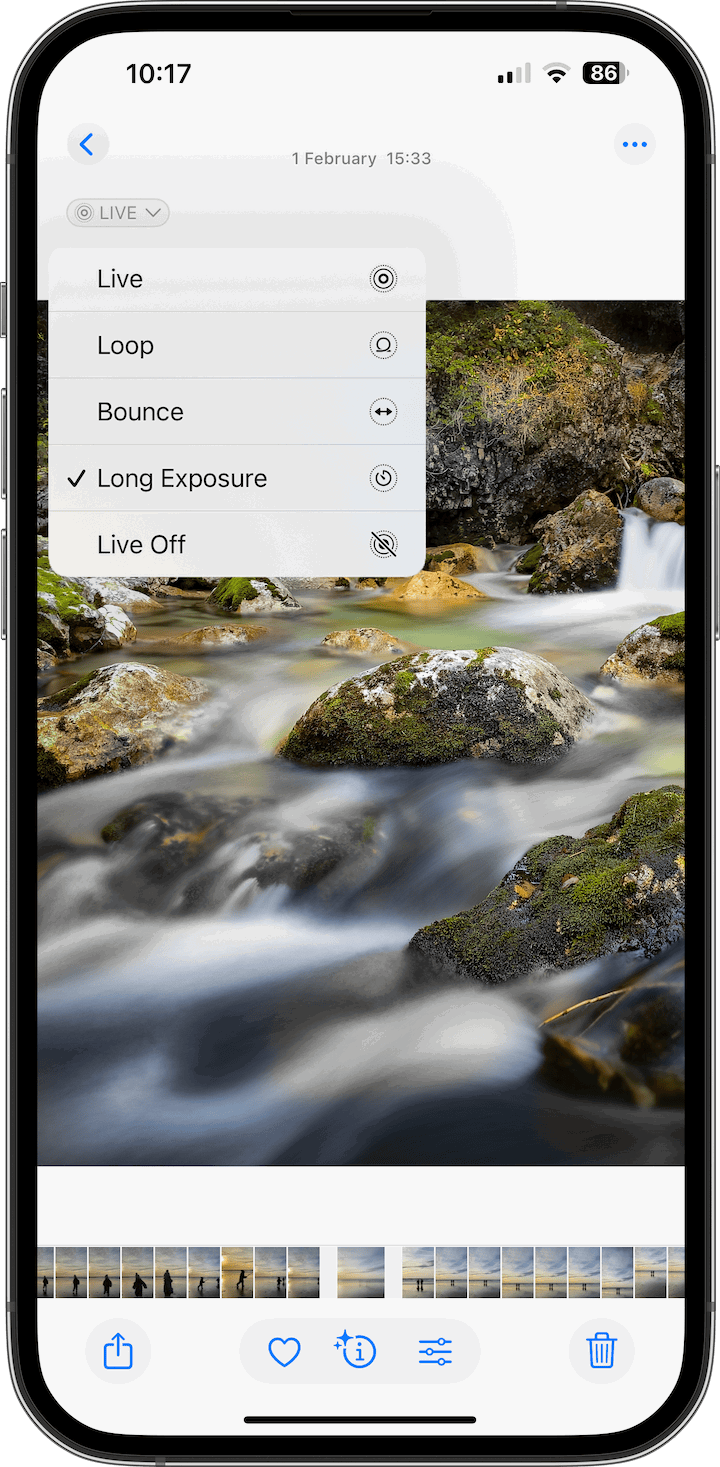
- Turn on Live Photos (the circle icon at the top of the Camera app).
- Hold your iPhone steady and shoot something moving. A waterfall, waves, a fountain, or a busy street.
- Open the photo. Tap Live at the top left. Choose Long Exposure.
That’s it. Waterfalls turn silky. Waves go smooth. Fountains look dreamy.
3. Tack-sharp action shots with Burst mode
Ever caught a great moment, only to find the photo came out blurry?
Burst mode fixes that. It takes about ten photos a second. Then you pick the sharpest one.
Here’s how:
- In Photo mode, slide the shutter button left and hold. (On older iPhones, press and hold the shutter.) Let go to stop.
- Or turn on Settings > Camera > Use Volume Up for Burst. Then just hold the Volume Up button.
- Open the burst in Photos, tap Select, and keep the frames you love.
It’s the easiest way to get a sharp shot of anything that moves. Kids, pets, sports, you name it.
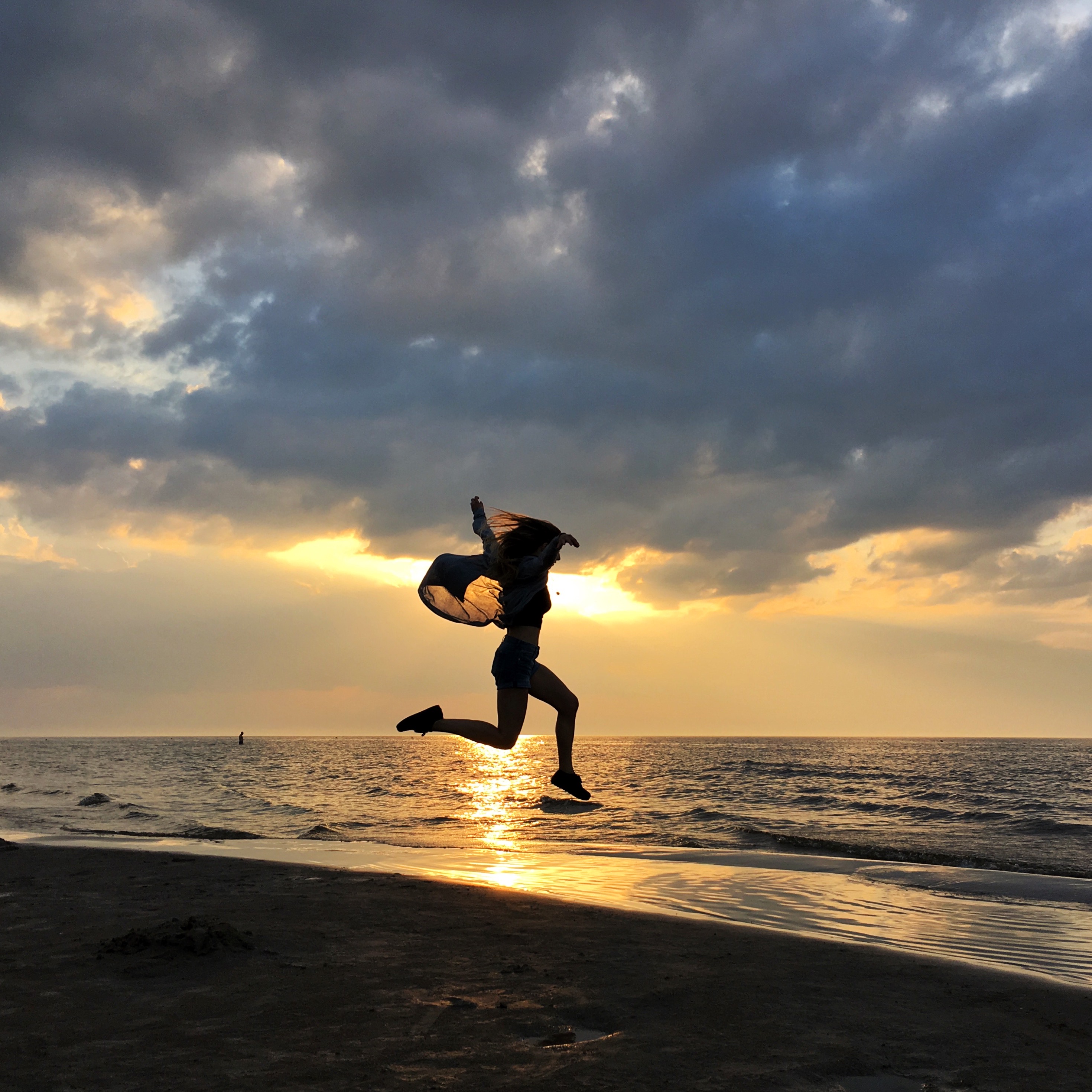
The secret to stunning iPhone photos
It was never the newest iPhone. The camera in your pocket was always good enough. You just had to know a few hidden tricks.
And these three are just the beginning. The same hidden tricks exist for light, composition, portraits, and editing.
That’s exactly what iPhone Photo Academy is for. It’s an online course that teaches you to take stunning photos with the iPhone you already own. The lessons are short, beginner-friendly, and easy to follow at your own pace.
More than 648,000 people have already used it to transform their photos. It covers everything we did here, plus hundreds more tricks for light, composition, portraits, and editing.
So why wait? Sign up today and get 80% off.